ABAP-AI-completion
ABAP AI Completion - Eclipse Plugin
🌐 Language / 语言: English 中文
English
An AI-powered code completion plugin for SAP ABAP developers, built for Eclipse. Based on Large Language Models (LLM), it pursues ultimate privacy and data security, supports local LLMs for in-house/enterprise use, preventing corporate code from being uploaded to the Internet to guarantee code confidentiality, and provides intelligent code suggestions and auto-completion while writing ABAP code.
Token Usage for Code Completion
- 1. Token consumption is minimal when using only the current program or open editor as context — typically a few hundred tokens. With DeepSeek priced at $0.04 per million tokens, one dollar can cover ~25,000 completions (output tokens are negligible).
- 2. Free model tiers are also viable; I tested agnes-2.5-flash free model and found it works well.
Advantages over Copilot
- ✅ Local LLM support: A local LLM can be used for in-house/enterprise use, preventing corporate code from being uploaded to the Internet to guarantee code confidentiality.
- ✅ Fully open source, free for enterprise use: This plugin is completely open source and free for enterprise use, with no fees required, and you can use it with peace of mind.
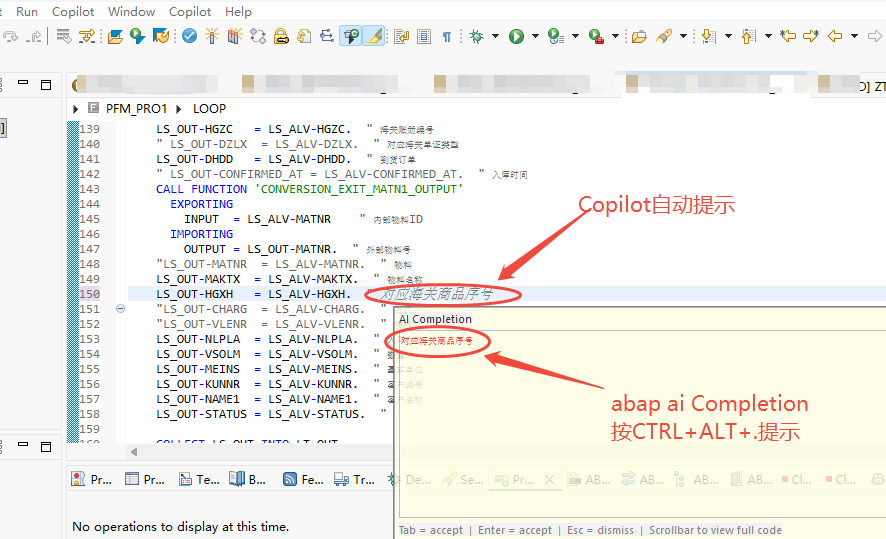
- 🤖 Full workspace context: Besides the current editor’s ABAP code, you can optionally pass in all ABAP code currently open in the workspace. Copilot only supports the current editor’s code and does not offer this feature.
- ⌨️ Deep search for related code references: Searches related programs and sends them to the AI as code references for completion. Note that deeper search levels affect performance; a maximum of one level is recommended.
- 🎯 Local SKILL as code reference: Define custom functions or templates in SKILL files and pass them as reference for more reasonable AI completions. Copilot also has configurable SKILLs, but they are only used for chat, not for AI reference code completion.
Features
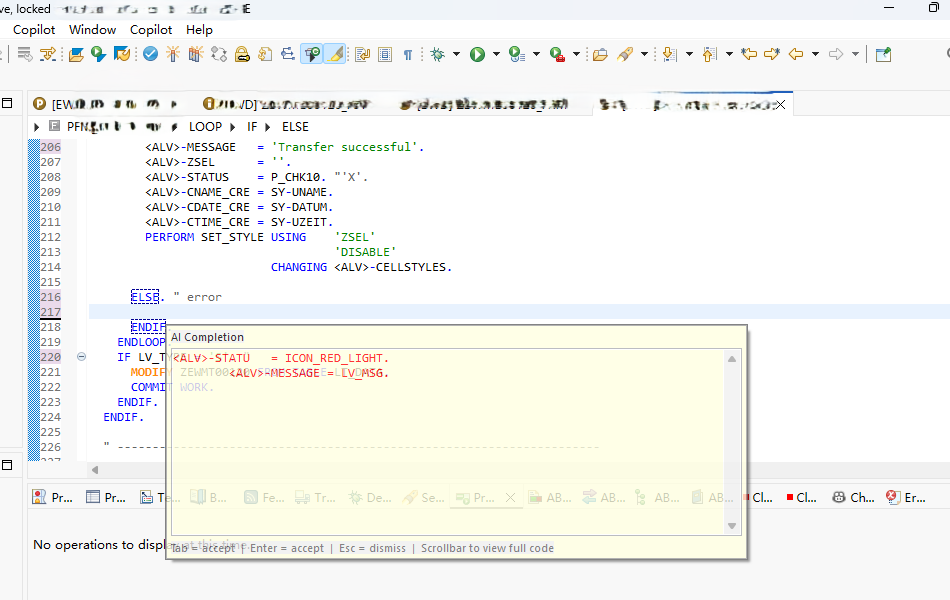
- 🤖 AI smart completion: Provides context-aware ABAP code suggestions based on the AI model at the cursor position
- ⌨️ Manual trigger: Press
Ctrl+Shift+.to manually invoke AI code completion - ⚡ Auto-completion: Optional auto-completion mode that triggers AI suggestions after you stop typing
- 📋 INCLUDE resolution: Automatically resolves ABAP INCLUDE programs for more accurate contextual completion
- 🎯 Skill directory: Supports
.abap,.txt,.skillfiles as AI reference patterns - 🌊 Floating overlay: Code suggestions display in a floating overlay (Copilot-style)
- 🎨 Custom styling: Customize the display colors of completion code
- 🔌 Flexible configuration: Supports any service endpoint compatible with the OpenAI Chat Completions API
- ** Manual completion (
Ctrl+Shift+.) uses SKILL**: Auto-completion (requestQuickCompletion) uses a simplified standalone prompt and does not load SKILL directory content. - ** Completion mode configuration**: In preferences you can choose whether manual completion shows as an overlay or inserts directly; both use SKILL content.
Installation (End Users)
System Requirements
- Eclipse: 4.7+ (Neon) or later
- Java: JDK 17 or later
- Network: Access to the configured AI API service
Installation Methods
There are three ways to install; Method 1 (Eclipse Marketplace) is recommended.
Method 1: Install from the Eclipse Marketplace (recommended)
-
In the Eclipse menu bar, open
Help→Eclipse Marketplace... -
Type
ABAP AIin the search box and findABAP AI Completion -
Click
Installand follow the prompts (accept the license, trust the certificate) -
After installation, click
Restart Now (Restart Eclipse)to load the plugin
Method 2: Install via Install New Software
-
In the Eclipse menu bar, select
Help→Install New Software...(some versions showHelp→Install Software...) -
Click the
Add...button in theAvailable Softwaredialog and enter the update site URL:Name: ABAP AI Completion Location: https://yan252.github.io/ABAP-AI-completion/update-site💡 You can also click
Archive...and selectABAP-AI-Completion-UpdateSite-1.0.5.zipfor offline installation. -
Check
ABAP AI Completion Feature, then clickNext→Next→ accept the license →Finish -
After installation, click
Restart Now (Restart Eclipse)to load the plugin
Method 3: Use the dropins approach (debugging/development)
Copy dist/com.sap.abap.ai.completion_1.0.5.jar to Eclipse’s <install-path>/dropins/ directory (create it if it does not exist), then restart Eclipse.
Usage
Manual Code Completion
- Open any ABAP source file (
.abap,.prog, etc.) - Place the cursor where you want completion
- Press
Ctrl + Shift + .to invoke AI completion - The AI suggestion displays as a floating overlay
- Press
Tabto accept the suggestion, or any other key to cancel
Auto-Completion Mode
After enabling “Auto-complete while typing” in the configuration, AI suggestions automatically trigger after you stop typing for a period (default 2000ms).
Changing the Shortcut
To change the shortcut:
- Menu:
Window→Preferences - Navigate to:
General→Keys - Search:
ABAP AI completion - Click the
Bindingfield and press the new key combination - Click
OKto save
Configuration
Opening the Configuration Page
- Menu:
Window→Preferences - Find
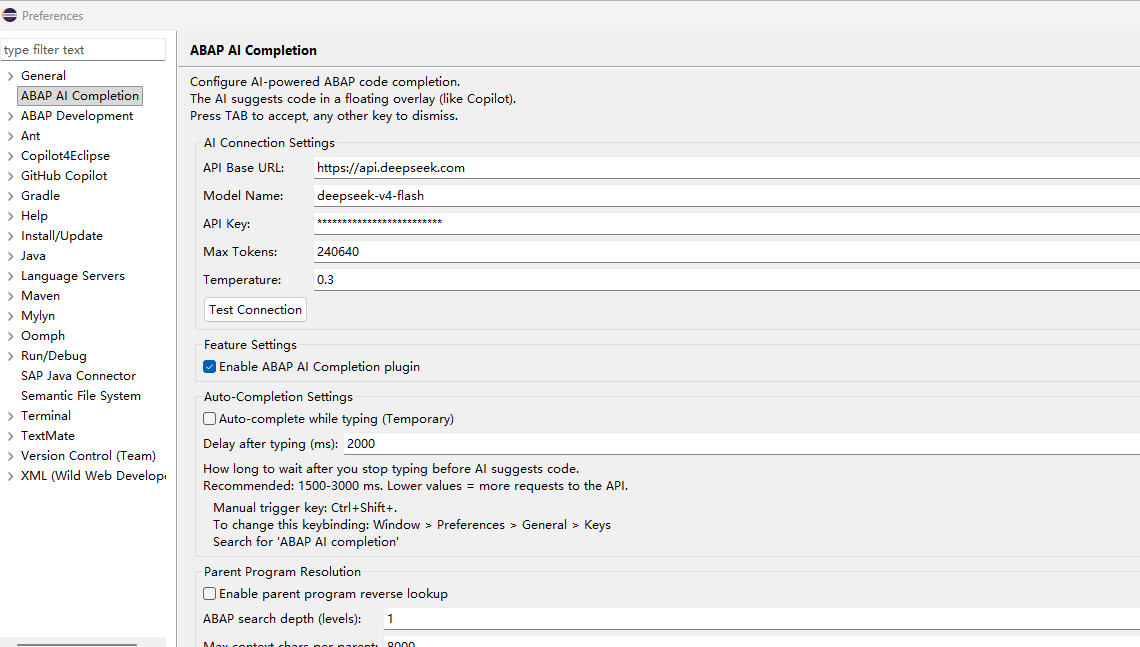
ABAP AI Completionin the left navigation tree - The configuration page is shown below:

Configuration Items
AI Connection Settings
| Setting | Description | Example |
|---|---|---|
| API Base URL | AI service endpoint URL | https://api.openai.com/v1 |
| Model Name | AI model name to use | gpt-4, deepseek-v4-flash |
| API Key | API authentication key | (displayed as stars) |
| Max Tokens | Maximum number of generated tokens | 256 |
| Temperature | Creativity temperature (0.0-2.0) | 0.3 (lower means more deterministic output) |
💡 Tip: Click the
Test Connectionbutton to verify the API connection.
Feature Settings
| Setting | Description |
|---|---|
| Enable ABAP AI Completion plugin | Enable/disable the entire plugin |
| Auto-complete while typing | When enabled, auto-triggers AI suggestions after you stop typing |
Auto-Completion Settings
| Setting | Description |
|---|---|
| Delay after typing (ms) | How many milliseconds after you stop typing before auto-completion triggers |
💡 Suggestion: Recommended value is 1500-3000 ms. Lower values increase API request frequency.
Skill Directory
Place .abap, .txt, or .skill files in the skill directory and the AI references these file code patterns for completion. This is very useful for project-specific coding standards and naming conventions.
Custom System Prompt
Customize the system prompt sent to the AI to guide it to follow specific code styles and standards.
Overlay Style
Customize the display colors of AI completion code in the editor.
Developer Guide (Custom Development)
Environment Requirements
- JDK: 17+
- Eclipse: Eclipse with Plug-in Development Environment (PDE)
- Build Tool: Apache Maven (optional)
Importing the Project
- Clone the repository locally:
git clone https://github.com/yan252/ABAP-AI-completion.git - Import the project into Eclipse:
File→Import→Existing Projects into Workspace- Select the cloned project directory
- Check the project and click
Finish
Project Structure
com.sap.abap.ai.completion/
├── META-INF/
│   └── MANIFEST.MF              # OSGi bundle manifest
├── src/
│   └── com/sap/abap/ai/completion/
│       ├── client/              # AI API client
│       │   ├── AIClient.java
│       │   ├── AIClientException.java
│       │   └── PromptCacheManager.java    # Prompt compression & multi-node cache management
│       ├── editor/              # Editor integration
│       │   ├── AICompletionHandler.java
│       │   ├── AICompletionListener.java
│       │   ├── AICompletionOverlay.java
│       │   ├── AICompletionProposalPopup.java
│       │   ├── AICompletionService.java
│       │   └── AIOverlayManager.java
│       ├── logging/             # Logging
│       │   └── AILogger.java
│       ├── parser/              # ABAP parser
│       │   ├── AbapCodeTruncator.java
│       │   ├── AbapIncludeResolver.java
│       │   ├── AbapLanguageDetector.java
│       │   ├── ParentProgramContext.java
│       │   ├── ParentProgramResolver.java
│       │   └── WorkspaceCodeCollector.java
│       ├── preferences/         # Configuration management
│       │   ├── AICompletionPreferencePage.java
│       │   ├── AIConfiguration.java
│       │   ├── PreferenceConstants.java
│       │   └── PreferenceInitializer.java
│       ├── ui/                  # UI integration such as status bar
│       │   └── AbapAIStatusLineContribution.java
│       └── Activator.java       # Bundle activator
├── icons/
│   └── SAPLogo.ico              # Plugin icon
├── dist/                        # Published JAR
│   └── com.sap.abap.ai.completion_1.0.1.jar
├── update-site/                 # Update site
│   ├── features/
│   ├── plugins/
│   ├── artifacts.jar / artifacts.xml
│   ├── content.jar / content.xml
│   └── site.xml
├── tools/
│   └── CacheVerifyTool.java     # Cache verification tool
├── plugin.xml                   # Plugin extension point declarations
├── build.properties             # Build properties
├── build.ps1                    # Windows build script
├── build_plugin.xml             # Build script (ANT)
├── generate-update-site.ps1     # Update site generation script
└── rebuild.ps1                  # Rebuild script
Key Extension Points
This plugin integrates through the following Eclipse extension points:
| Extension Point | Purpose |
|---|---|
org.eclipse.ui.startup |
Plugin auto-start |
org.eclipse.ui.preferencePages |
Configuration page registration |
org.eclipse.core.runtime.preferences |
Preference initialization |
org.eclipse.ui.commands |
Completion command definition |
org.eclipse.ui.bindings |
Shortcut key bindings |
Core Architecture
- AIClient: Pure Java HTTP client that calls the AI Chat Completions API, no external JSON library required
- AICompletionService: Async completion service that handles timeouts, cancellation, and errors
- AbapIncludeResolver: Resolves ABAP INCLUDE programs to provide full context to the AI
- AIOverlayManager: Manages the display and interaction of the floating overlay
- AIConfiguration: Unified configuration management with preference storage
MESSAGE Nodes Sent to AI
When manual completion (Ctrl+Shift+.) is triggered, the plugin constructs a message list of 1 system node + 5 user nodes to send to the AI (corresponding to the buildUserMessages method in AICompletionService.java). The meaning of each node is as follows:
| Node | Role | Content |
|---|---|---|
| System | system |
System prompt. Defines the AI’s role (senior SAP ABAP development expert), completion rules, and output constraints. Can be overridden using Custom System Prompt |
| Node 1/5 | user |
SKILL file content: .abap/.txt/.skill files loaded from the skill directory as code style and best-practice references. If no SKILL, it states “use system default ABAP coding standards” |
| Node 2/5 | user |
Parent program call context: When the current file is an INCLUDE, deep search finds the code of the parent programs that call it (recursively searched by configured search depth). Compressed via PromptCacheManager.compressContent |
| Node 3/5 | user |
Programs open in workspace: Other ABAP files open in the current Eclipse workspace as style reference and supplementary context (collected by WorkspaceCodeCollector, also compressed) |
| Node 4/5 | user |
Program metadata: Summary of filename, code type, INCLUDE count, parent program/workspace/SKILL load status to help the AI comprehensively understand the overall context |
| Node 5/5 | user |
Current program at cursor (with cursor position): Merged from the original “full code” node and “cursor context” node. Shows the complete code of the program at the cursor (with all INCLUDEs expanded via AbapIncludeResolver), with the insertion position marked with [[[CURSOR_HERE]]] — this is exactly where the AI generates the completion content |
Note: Nodes 2 and 3 are uniformly compressed before sending via
PromptCacheManager.compressContent(with the compression limit following theMax Workspace Code Charsconfiguration) to avoid context window overflow; Node 1 (SKILL) is sent in full, while the other nodes are sent according to their own rules. If a node has no matching content, a placeholder message (stating that node’s current status) is still sent to ensure the AI always receives the complete 1+5 node structure.
Comparison: Auto-completion (
requestQuickCompletion) does not load SKILL or the above context; it uses a simplified standalone prompt and only sends 1systemnode + 1usernode (current line context).
Building the Plugin
Using Eclipse Export
- Right-click the project →
Export - Select
Deployable plug-ins and fragments - Choose the output directory as
dist/ - Click
Finish
Using ANT Script
# Windows PowerShell
.\build.ps1
Or use the provided build_plugin.xml:
ant -f build_plugin.xml
Debugging the Plugin
Launch a new Eclipse instance in Eclipse to debug:
Run→Run Configurations- Create a new
Eclipse Applicationconfiguration - In the
Plug-instab, ensurecom.sap.abap.ai.completionis included - Click
Runto start
FAQ
Q: The configuration option does not appear after installing the plugin?
A: Please verify:
- The JAR file is correctly placed in the
dropinsdirectory - Eclipse has been restarted
- The Eclipse version meets the requirement (4.7+)
- The Java version is 17 or later
Q: What if code completion requests time out?
A:
- Check the network connection
- Verify the API Base URL and API Key are configured correctly
- You can increase
Max TokensandTemperaturevalues in the configuration - Try clicking the
Test Connectionbutton to verify the connection
Q: Which AI services are supported?
A: Any service compatible with the OpenAI Chat Completions API, including but not limited to:
- OpenAI (GPT-4, GPT-3.5, etc.)
- Azure OpenAI Service
- Alibaba Cloud Bailian (DashScope)
- Any compatible third-party API service
Q: Can it be used offline?
A: No. This plugin requires a network connection to call the AI API service. However, reference files in the skill directory can help the AI generate code that better conforms to project standards.
Q: Is the API Key secure?
A: The API Key is stored in Eclipse preferences and displayed as stars. However, note that:
- Do not commit configuration files containing API Keys to version control
- Use environment variables or a key-management service to store keys (if possible)
Technology Stack
- Language: Java 17
- Framework: Eclipse Platform / JFace / SWT
- API Protocol: OpenAI Chat Completions API
- JSON Handling: Pure Java implementation (no third-party dependencies)
- Build: Eclipse PDE / ANT
License
This project is for learning and personal use only. Please comply with the terms of service and licensing requirements of the AI services you use.
Acknowledgments
This plugin is inspired by AI-assisted programming tools such as VS Code Copilot, aiming to provide a better coding experience for SAP ABAP developers.